Bitbucket Cloud
Learn how to integrate Entelligence with Bitbucket Cloud repositories for automated AI-powered code reviews.
For an overview of how Entelligence connects to Git platforms, see your workspace’s repository and integration settings in the Entelligence app. For a general walkthrough of PR reviews, see PR Reviews.
Entelligence integrates with Bitbucket Cloud to improve your development workflow by:
- Automated code reviews for newly created pull requests
- Intelligent comments and suggestions displayed directly on pull requests
- Real-time bot interaction for immediate feedback and assistance
- Webhook integration for continuous monitoring
This guide walks you through integrating Entelligence with your Bitbucket Cloud repositories.
Configure API Token
To enable Entelligence to interact with your Bitbucket repositories, configure an API token. The token grants the permissions required for pull request and discussion APIs.
Service account required
Create a dedicated Bitbucket account specifically for Entelligence so permissions and security boundaries stay clear.
Create an Entelligence service account
Create a new Bitbucket account used only as a service account for Entelligence.
Configure account settings
- Name the account Entelligence (or another name your team will recognize)
- Use a dedicated email address for this service account
- If your Bitbucket workspace requires two-step verification, enable it on this account as well
Generate an API token
Generate an Atlassian API token for the Entelligence service account so Entelligence can call Bitbucket APIs on its behalf.
We recommend a dedicated service account in the workspace where you install Entelligence. During installation, Entelligence can configure the webhook needed for PR events.
If you change which Bitbucket user posts reviews, supply an API token for the new user. You may need to remove the previous user from projects and webhooks, then reconnect Entelligence for each affected repository.
Best practices for service account setup
Account configuration
- Use Entelligence as the display name or username where practical
- Use a dedicated email for lifecycle and access reviews
- Use a profile image your team recognizes (e.g. your internal Entelligence branding)
Access control
- Grant developer (or equivalent) access to target repositories
- Ensure workspace membership for the service account
- Enable two-factor authentication if your workspace requires it
Important: Reviews and comments are attributed to the owner of the API token. Make sure the service account is clearly identified for your team.
Generate an API token
Bitbucket / Atlassian account settings expose API tokens for the Entelligence service account:
Log in as the service account
Log in as the Bitbucket user designated for Entelligence reviews.
Open API tokens
Go to API Tokens (opens in a new tab) in your Atlassian account security settings.
Configure token details
- Click Create API token with scopes, then label it Entelligence PR Bot (or another clear name)
- Set an expiration that matches your security policy
- When prompted, choose Bitbucket as the product
Select required scopes
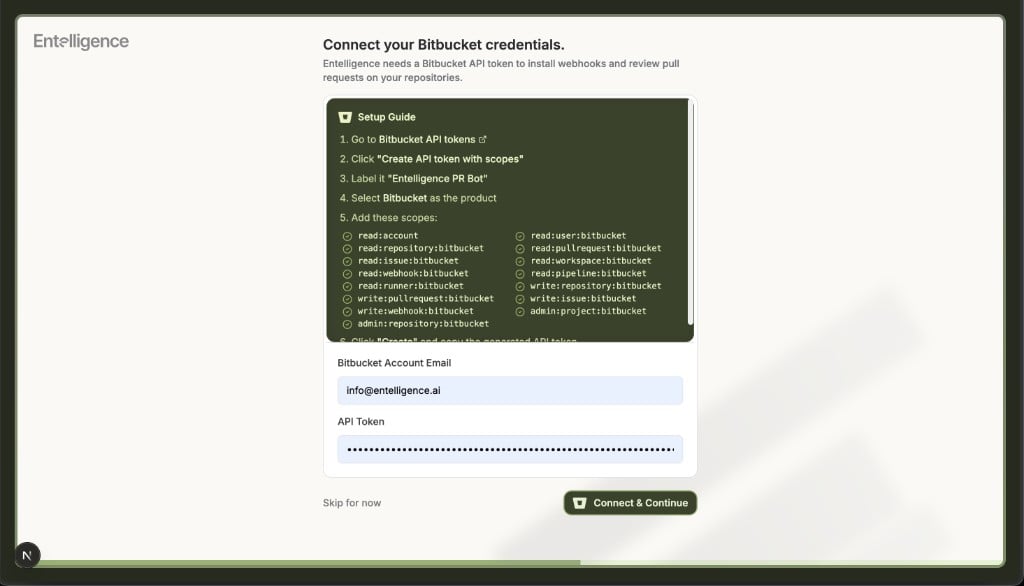
Ensure the following scopes are selected (same checklist as Connect your Bitbucket credentials in Entelligence):
| Scope | Purpose |
|---|---|
read:account | Access account information |
read:user:bitbucket | Read user profile data |
read:repository:bitbucket | Read repository content and metadata |
write:repository:bitbucket | Write access for code analysis workflows |
admin:repository:bitbucket | Repository-level admin where required for integration |
read:pullrequest:bitbucket | Read pull request information |
write:pullrequest:bitbucket | Post reviews and comments |
read:issue:bitbucket | Read issue information |
write:issue:bitbucket | Create and update issues when configured |
read:workspace:bitbucket | Access workspace information |
admin:project:bitbucket | Manage project webhooks across workspace projects |
read:webhook:bitbucket | Read webhook configuration |
write:webhook:bitbucket | Create and manage webhooks |
read:pipeline:bitbucket | Read pipeline information |
read:runner:bitbucket | Read runner data |
Create and store the token
- Click Create
- Copy the token immediately — it is only shown once
Security: Store the token in a secrets manager. Rotate it before expiry and update it in Entelligence.
Configure the API token in Entelligence
When you connect Bitbucket, Entelligence shows Connect your Bitbucket credentials with the same token steps and scope list as below. Enter the Bitbucket account email for the service account and paste the API token, then use Connect & Continue.
Entelligence prompts for the Bitbucket API token during repository installation if one is not already saved.
Install Entelligence on your repositories
After the API token is configured, select repositories where Entelligence should run.
Open repository settings in Entelligence
In the Entelligence app, go to the Repositories (or equivalent) settings area where Bitbucket workspaces are connected.
Select repositories
- Select the repositories that should receive automated reviews
- If your UI supports it, you can bulk-select all repositories in a workspace
Complete installation
Confirm installation so Entelligence can register webhooks and start reviewing new pull requests.
Webhook: Entelligence installs a webhook on the selected Bitbucket projects so it receives pull request and related events. If you need the exact URL for firewall or audit records, ask support@entelligence.ai or your account team — it may differ by deployment.
Configure network access
If your organization allowlists IP addresses for inbound webhooks or outbound API access, request the current Entelligence egress IP ranges for Bitbucket from support@entelligence.ai. Do not reuse another vendor’s IP list.
Troubleshooting
Webhook issues
If Entelligence is not receiving events or reviewing pull requests:
- Check Webhooks in the Bitbucket repository or project settings
- Remove a stale webhook and reconnect the repository from Entelligence if the UI allows it
- Refresh the repository list in Entelligence and retry installation
Installation problems
If installation fails:
- Permissions: Confirm the service account has developer (or higher) access to the target repos
- Token scopes: Regenerate the token with the scopes in the table above
- Workspace access: Confirm the service account is a member of the correct workspace
Authentication errors
If you see auth or 401/403 errors:
- Regenerate the API token with the correct scopes
- Update the token under Organization Settings in Entelligence
- Verify workspace membership and repo access for the service account
For additional help, email support@entelligence.ai or use your usual Entelligence support channel.